Match a GTA 6 thumbnail to its title
A practical Creator Studio loop: lock a title angle, pick a 1280×720 layout, stamp the headline, check mobile safe zones, then update an existing YouTube video.
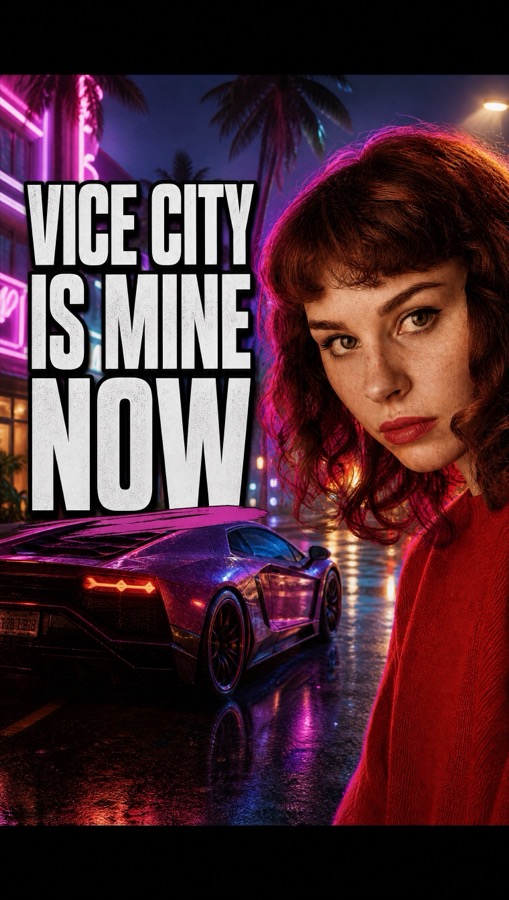
One pass, two outputs
Creators lose time when the title doc and the Photoshop file disagree. Creator Studio keeps them on one desk: Get ideas for angles, choose a layout, stamp the winning line, export PNG.
Free templates keep a first draft cheap. Personalize layouts spend credits when your face must be in the frame. Screenshot mode uses footage you already have.
Check the phone crop before you push
Mobile feeds forgive less. Use safe-zone previews. If the title collides with the face, shorten the line or pick another layout — do not hope YouTube’s crop will be kind.
Brand kit colors and logo overlays help a week of GTA 6 videos share one look. Keep official Rockstar marks out of the frame.
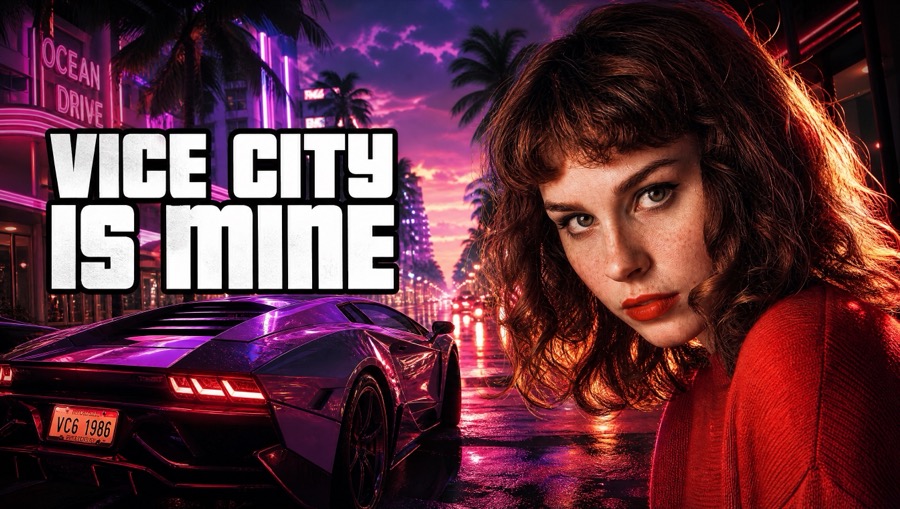
Honest limits
The studio does not guarantee CTR. It does not auto-create new YouTube videos. It does not replace your editor. Expect a fast title set and a layout you can export.
Wallpapers and map boards will not finish this job. Assets GLBs will not either — wrong deliverable.
Questions
- In what order should I work?
- Draft title angles while footage exports, lock a headline, then run thumbnail layouts and safe-zone checks before pushing metadata.
- Can I change the title after the image exports?
- Yes — the headline is composited so you can tweak wording without treating the PNG as uneditable stone.
- Does Push to YouTube create a new video?
- No. It updates an existing video’s title, description, and thumbnail.